¶ 7zip Add-On Guide
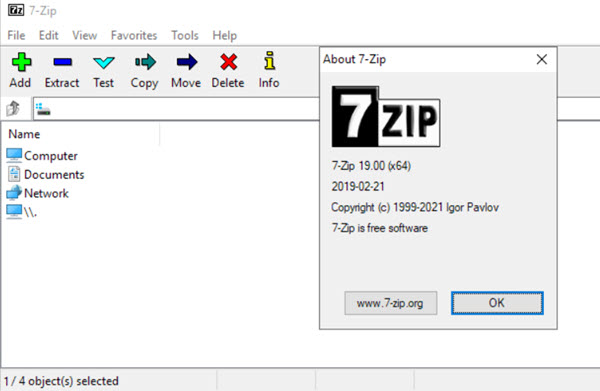
7zip is a file compression and extraction tool that supports multiple archive formats, including .7z, .zip, .rar, .tar, and more. It allows users to compress files to save space or extract archives for easy access.
¶ 📥 Installation
7zip can be installed via Batocera Unofficial Add-Ons (BUA). To install:
- Open Batocera Unofficial Add-Ons from the Ports menu.
- Browse the available add-ons and locate 7zip.
- Select Install and wait for the installation to complete.
- Once installed, 7zip will be available in your F1 Applications.
¶ 📂 How to Use
- Navigate to F1 Applications in Batocera.
- Locate 7zip and launch it.
- Navigate to Z: to access Batocera's file system.
- To extract a file:
- Select the archive you want to extract.
- Choose a destination folder.
- Click Extract and wait for completion.
- To compress a file:
- Select the files you want to archive.
- Choose the compression format and settings.
- Click Create Archive.
¶ ⚙️ Configuration
- Supported Formats:
.7z,.zip,.rar,.tar,.gz,.xz,.iso, and more. - Compression Settings: Adjust compression level for better speed or file size reduction.
- Password Protection: Encrypt archives for added security.
- Batch Extraction: Extract multiple archives at once.
¶ 🛠️ Troubleshooting
| Issue | Solution |
|---|---|
| 7zip not launching | Re-run the installer, check the troubleshooting guide for more help. |
| Unable to extract archive | Ensure the file is not corrupted and supported. |
| Compression taking too long | Reduce compression level or use faster settings. |
| Missing file associations | Manually select 7zip as the extraction tool. |