¶ OBS Studio Add-On Guide
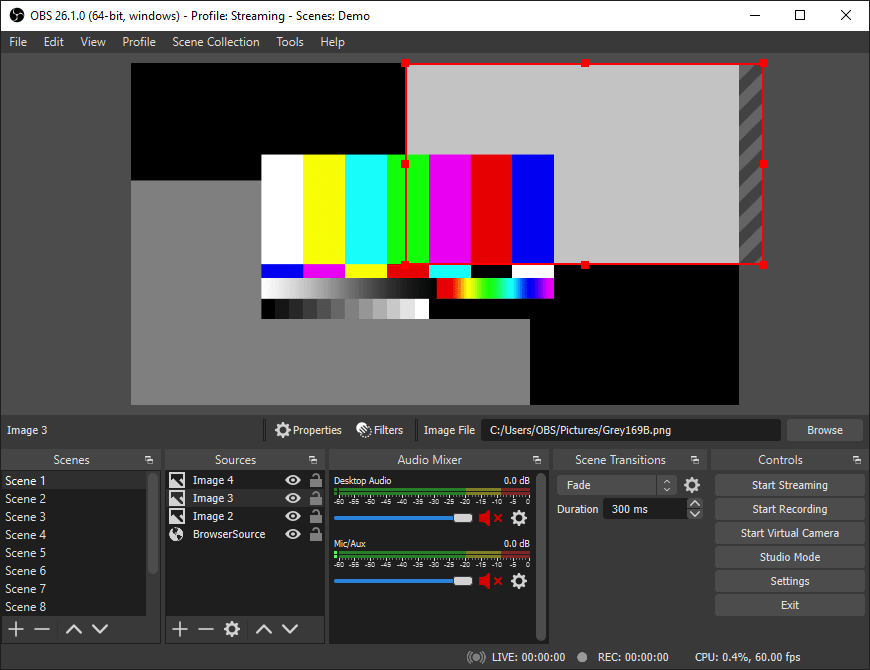
OBS Studio is a free and open-source software for video recording and live streaming. It provides powerful tools for capturing gameplay, screen recording, and live broadcasting with customizable scenes and overlays.
¶ 📥 Installation
OBS Studio can be installed via Batocera Unofficial Add-Ons (BUA). To install:
- Open Batocera Unofficial Add-Ons from the Ports menu.
- Browse the available add-ons and locate OBS.
- Select Install and wait for the installation to complete.
- Once installed, OBS Studio will be available in F1 Applications.
¶ 🎥 How to Use
- Navigate to F1 Applications in Batocera.
- Locate OBS Studio and launch it.
- Configure your recording or streaming settings.
- Add sources such as game capture, screen capture, or webcam.
- Start recording or broadcasting your gameplay.
¶ ⚙️ Configuration
- Recording Settings: Adjust resolution, bitrate, and frame rate for high-quality video capture.
- Streaming Options: Connect to Twitch, YouTube, or other streaming platforms.
- Audio Configuration: Manage multiple audio sources and filters.
- Scenes & Overlays: Customize your layout with multiple scenes and transitions.
¶ 🛠️ Troubleshooting
| Issue | Solution |
|---|---|
| OBS Studio not launching | Re-run the installer, check the troubleshooting guide if the issue persists. |
| Performance issues | Lower recording resolution or adjust encoding settings. |
| No audio | Verify input sources and adjust audio mixer settings. |
| Stream lagging | Optimize bitrate and ensure a stable internet connection. |